Overview
The problem
Zoom's Workforce Management product is the operational backbone of a contact center. It forecasts how much volume is coming, builds the schedules to cover it, tracks whether agents are where the schedule says, and manages their time off, for a workforce that runs from a few hundred people to a few thousand.
Nearly everything a supervisor does in it is a bulk action. They don't schedule an agent, they schedule a group: a scheduling group, the set of agents the product lets them manage as one unit. They don't move a break, they re-optimize an afternoon. That's the whole point of the product, and it's also the risk: an action that goes wrong goes wrong for hundreds of people simultaneously, and the people it happened to aren't in the room.
I was the only designer on WFM for ten months, working across most of its surface.
The opportunity
The reframe
A run of features is not a story. It's a backlog: notes on activities, an HR integration, a rotational template, a reporting surface, a favorites list. They arrived one ticket at a time from a PM who knew the customers well, and I worked each one from the ticket into user framing, jobs, and priority before designing it.
What I noticed partway through is that they weren't as different as they looked. Every one of them was a system doing something on a person's behalf: placing an activity on their day, moving their lunch, approving their time off, adjusting a balance they'd never see. And the interesting design question in each was almost never how to perform the action. It was what the system owed the people it had just acted on, and the supervisor accountable for them.
So the work stopped being a backlog and became one standard applied across all of it.
Scheduling is where the system touched people most directly, so that's where the work concentrated, and where the standard got its hardest tests.
Approach
How I approached it
Four principles, drawn out of the work rather than set down in front of it:
- Bound what the automation may doIf a system is going to rearrange someone's day, the supervisor decides how far it may move things and whose schedules are in scope.
- Show the change before committing to itPreview by default. Applying is a separate decision from calculating.
- Name who got left out, and whyA count is not an answer. A categorized reason that opens to names is.
- Tell the person whose day changedDisclosure that stops at the supervisor is only half of it.
Bulk scheduling
Scheduling an activity across hundreds of agents
A supervisor scheduling a training session isn't scheduling one person. They're putting an activity on two hundred schedules, and some of those agents are already booked: a 1:1, a lunch, a day off. The design question was what the system owes the supervisor about the agents it can't place.
The feature splits at that question. Fixed is for activities that have to happen at a set time (the trainer is only free Thursday at nine). Flexible is for activities that can move to fit the people. The choice screen names the tradeoff outright: fixed happens "regardless of agent conflicts," flexible "can accommodate your agent."
Flexible mode looks for default activity time in each agent's schedule (time not yet assigned to a specific activity) and places the activity where it has the least impact on requirements, the staffing levels a queue needs at each interval.
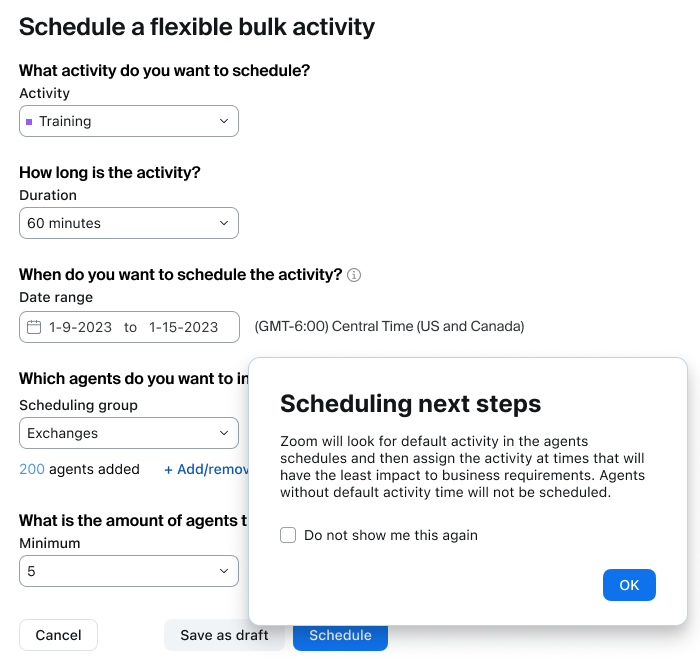 Flexible mode states the rule before the supervisor commits: the activity goes where it has least impact, and agents without default activity time won't be scheduled.
In fixed mode the system won't resolve conflicts on the supervisor's behalf, and it says so before anything is submitted. Then it lists them: every conflicting activity type, the number of agents behind it, and a decision per row: schedule anyway, or don't include them.
Two of those rows carry the weight. Out of office is an obvious conflict. Not scheduled isn't. An agent with no schedule that day reads to a naive system as available. Defining that absence as something the supervisor has to answer for is the difference between two hundred agents getting trained and ten of them being booked for a session on a day they aren't working.
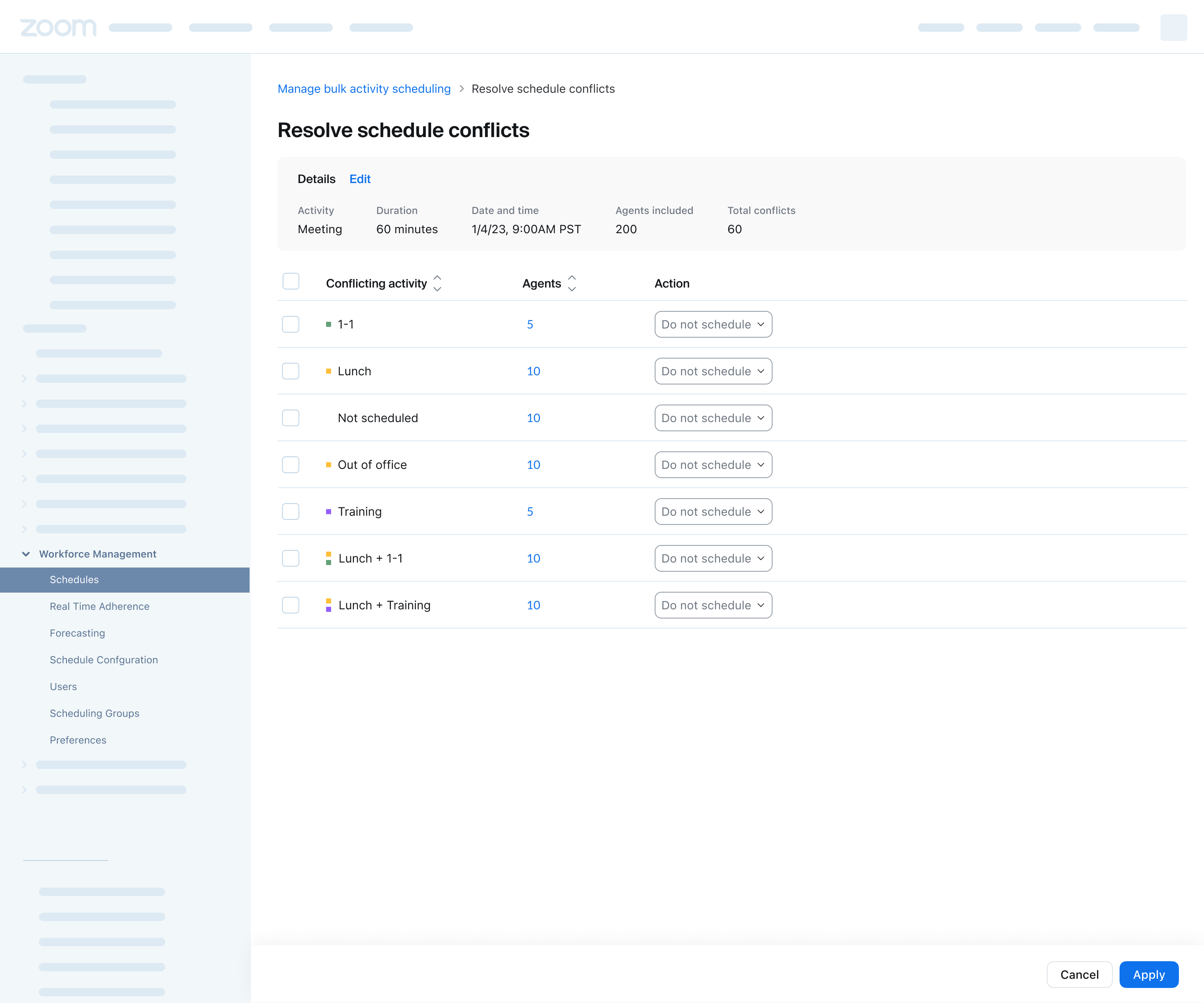 Every conflicting activity type, the agents behind it, and a decision per row. "Not scheduled" and "Out of office" are conflicts the supervisor has to answer for.
Flexible mode inverts the mechanism and keeps the standard. Because the activity can move, the system places it itself, then accounts for who it couldn't fit, with a reason for each: the available time couldn't accommodate the duration, the minimum group size couldn't be honored, they had no schedule or were out of office. Each reason opens to names.
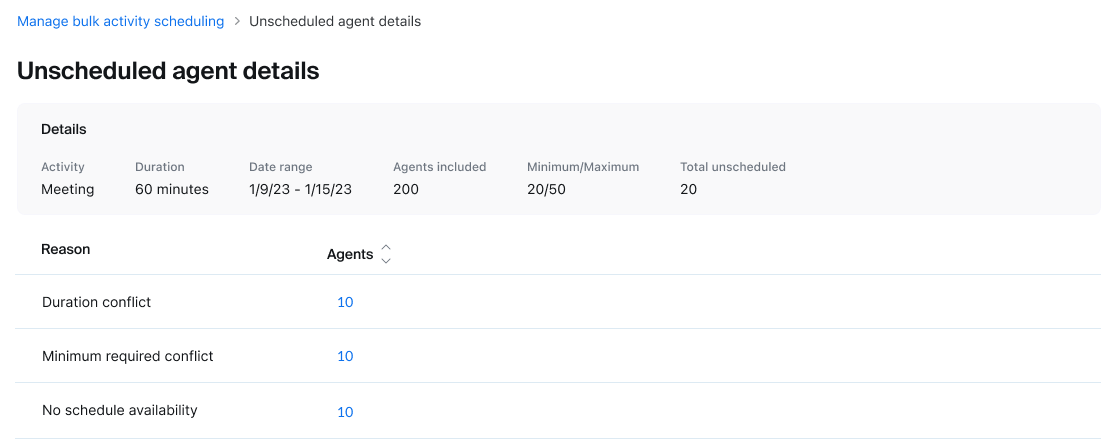 Unscheduled agents are grouped by reason, and each group opens to the agents in it.
Under both modes runs a state machine the supervisor can read at any moment (draft, processing, ready, scheduled, failed), each state defining what it means and what can be done from it. Failed offers a retry. Scheduled offers the list of who didn't make it.
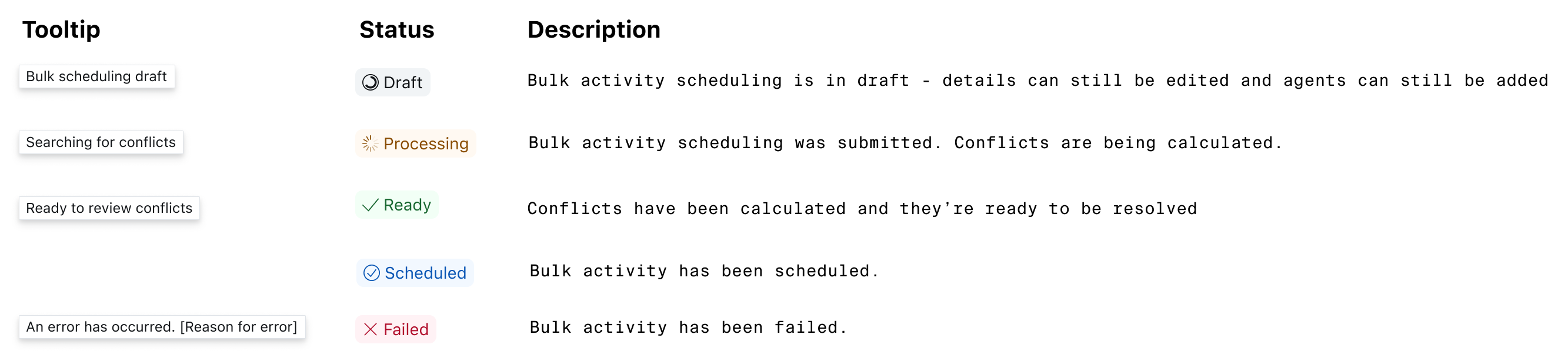 Part of the spec I wrote for engineering, defining what each state means and what the supervisor can do from it.
Rotational scheduling
Part of the spec I wrote for engineering, defining what each state means and what the supervisor can do from it.
Rotational scheduling
Automating shifts that agents cycle through
Some contact centers can't run on fixed hours. Agents rotate (mornings for two weeks, then evenings, then nights) so no one carries the worst shift permanently. Before this work, supervisors did that by hand, moving people between shifts week after week. At a few hundred agents, that's a task you eventually do wrong.
The design models the thing itself rather than the chore: a template holds an ordered set of shifts, agents are assigned to a shift, and each time schedules generate, everyone advances to the next one and wraps around at the end. The supervisor sets how many weeks an agent stays in a shift before moving on.
 How a rotation actually plays out. I drew this during discovery to work out the model: each generation advances every agent to the next shift and wraps at the end.
Order is a real configuration step, not a byproduct. The sequence agents move through is what determines whose hours change when, so it's editable directly. And because a rotation is a process already in motion, the supervisor can advance or revert everyone a position by hand, for the week that has to be re-run.
The part that took the most thought is the failure the system checks for. A rotation only produces even coverage if the shifts are balanced, and balance isn't a headcount. Four shifts can hold seven agents each and still be broken, if those sevens are drawn unevenly from the same scheduling group. Somebody's queue ends up short-staffed on rotation week three, and nobody finds out until it happens. So the template checks distribution rather than totals, and names the groups it found uneven.
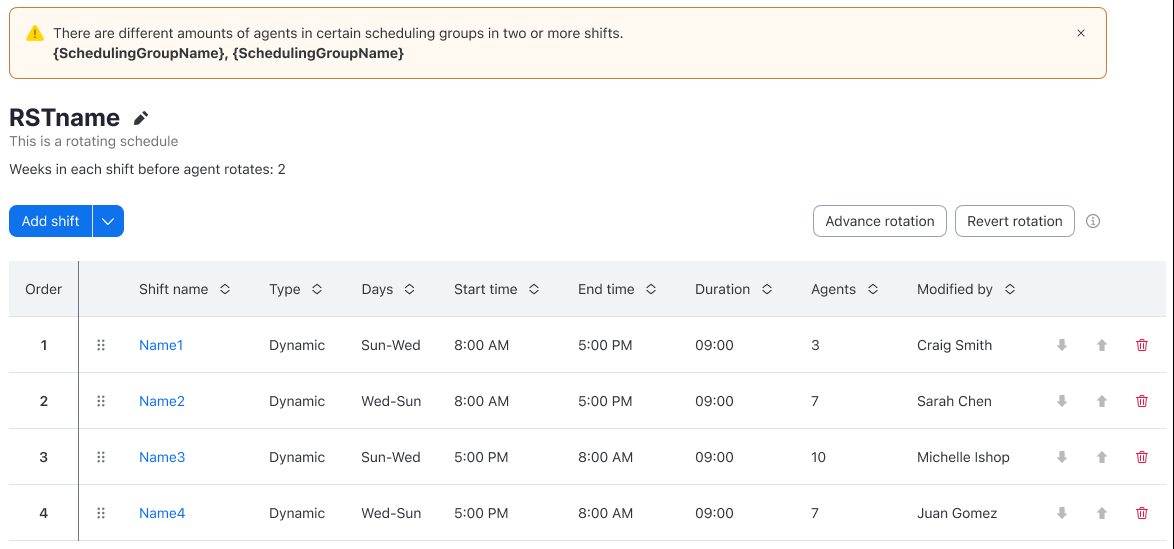 Uneven counts (three, seven, ten, seven) trip the warning.
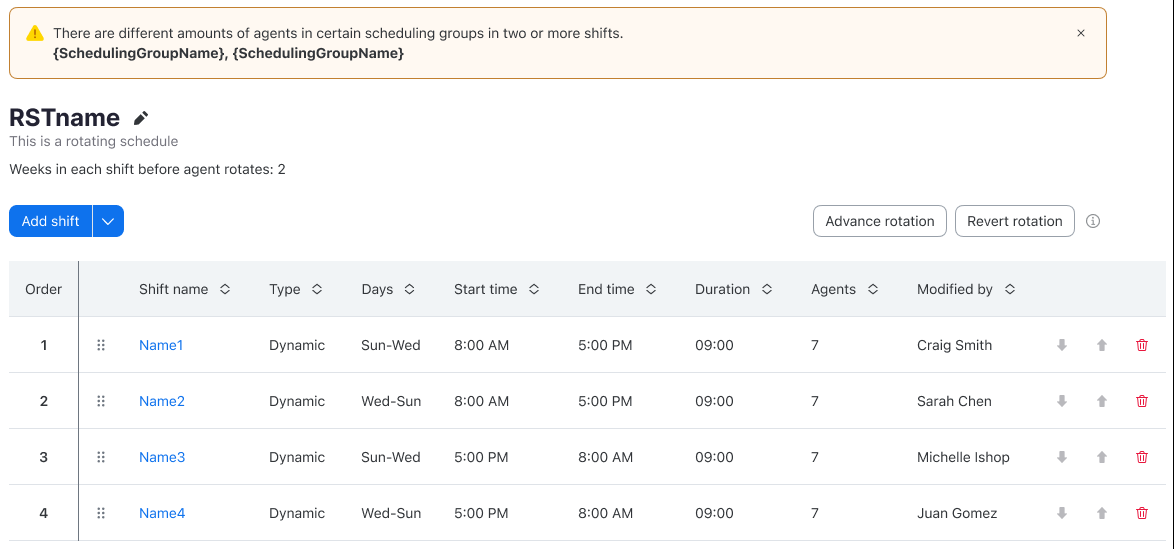 Same total, all four shifts at seven, and the warning still fires, because the agents within a scheduling group are spread unevenly. The warning names the groups.
Smaller consequences get stated at the moment they matter. Duplicating a shift to save setup time doesn't bring its agents along. The modal says so before the supervisor clicks, because an empty shift that looks populated is a coverage gap waiting for a generation cycle to expose it.
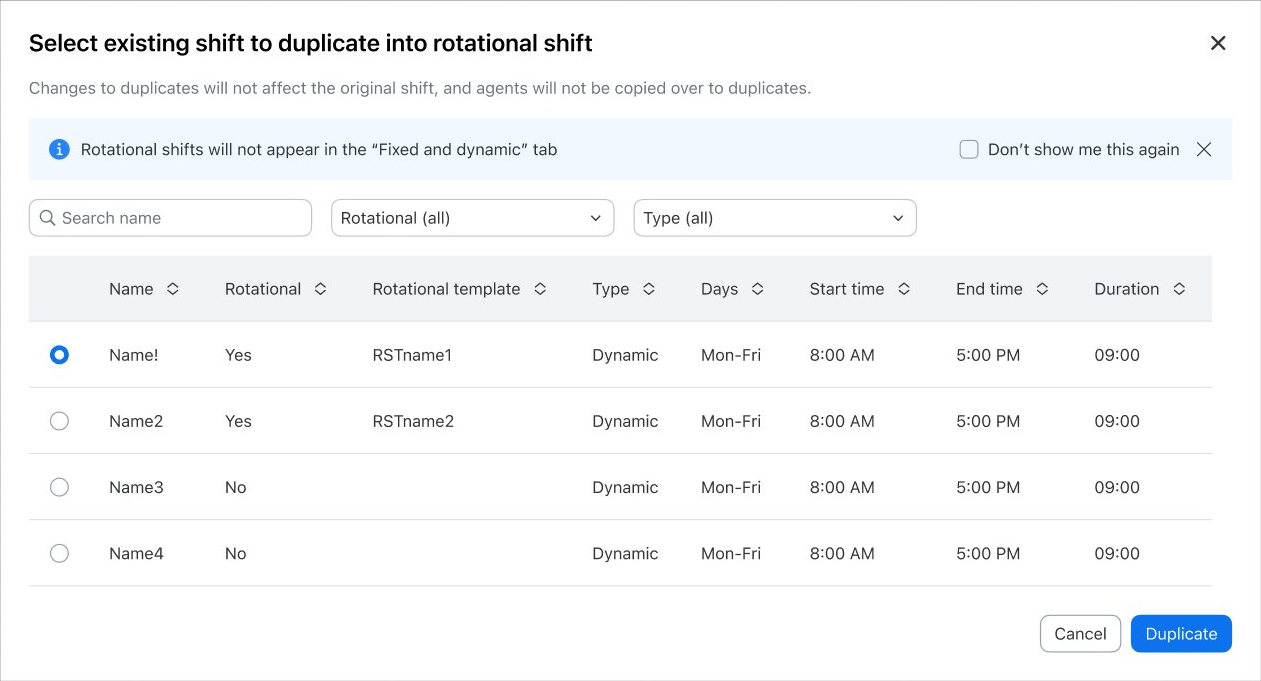 The duplicate modal says up front that agents won't be copied to the new shift.
Intraday reforecasting
The duplicate modal says up front that agents won't be copied to the new shift.
Intraday reforecasting
Adapting the schedule when the day changes
A contact center plans its day in advance and then the day happens. Volume runs hot, a queue backs up, and by ten in the morning the staffing the forecast asked for isn't the staffing the day needs. A supervisor can see that in the intraday report. What they couldn't do was act on it without rebuilding the afternoon by hand.
This is two features that are really one flow: recalculate what the rest of the day requires, then redistribute the breaks and lunches that were planned against the old numbers.
Reforecasting comes first, and it doesn't commit anything. The new staffing levels arrive as a preview, broken out by scheduling group, with a toggle that switches the table from absolute numbers to the difference: plus three, minus two, plus nine. The supervisor decides which groups take the change. Some queues need the new plan; some are fine. Applying to all of them because the system calculated all of them would be the easy version and the wrong one.
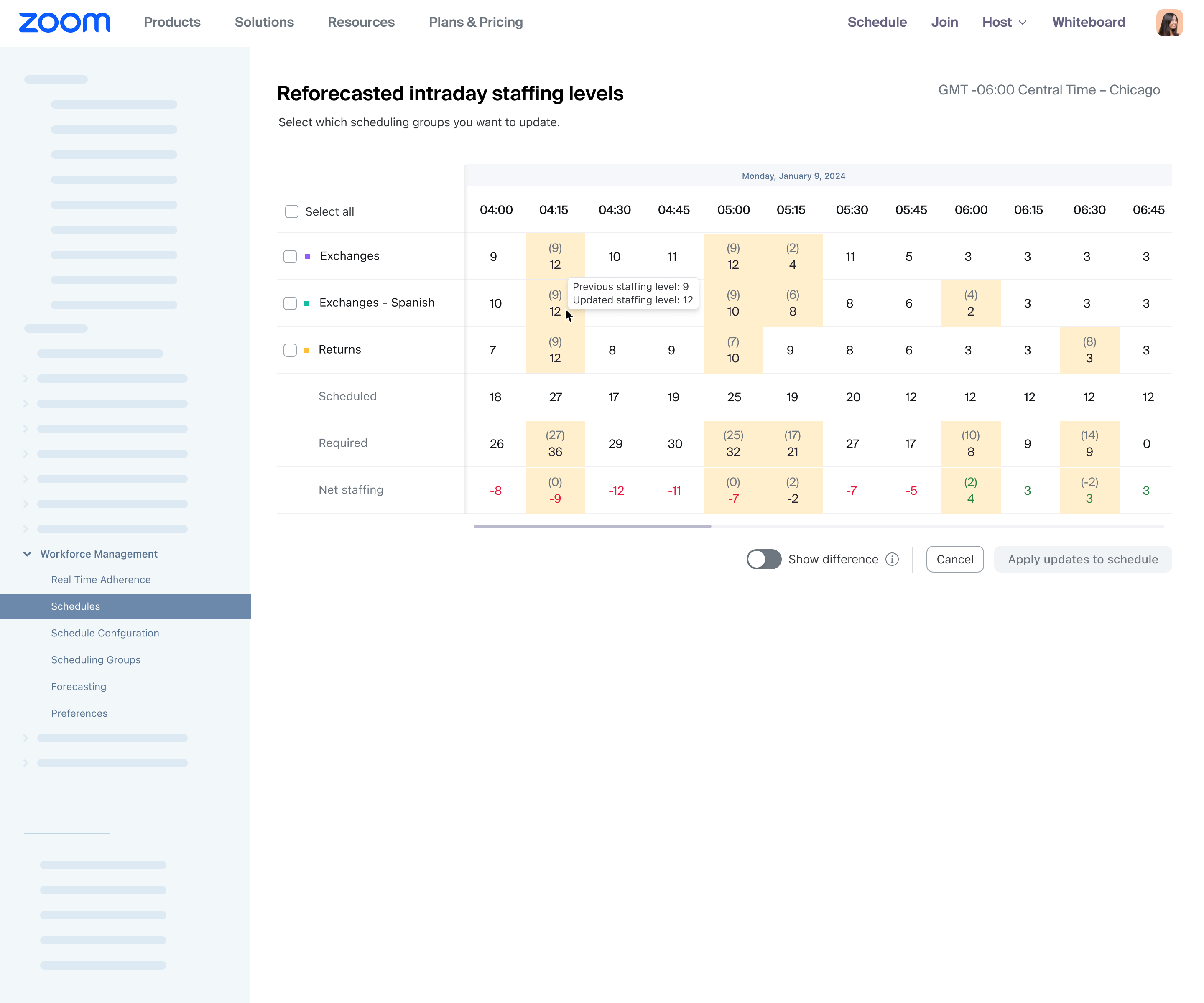 Reforecasting produces a preview, not a change. Per scheduling group, with a toggle for the difference, and nothing applies until the supervisor picks which groups.
Once applied, the schedule marks what moved. The changed staffing values stay highlighted until the next time they change, so a recalculation that touched dozens of numbers doesn't arrive as a schedule that's simply different from the one the supervisor remembers.
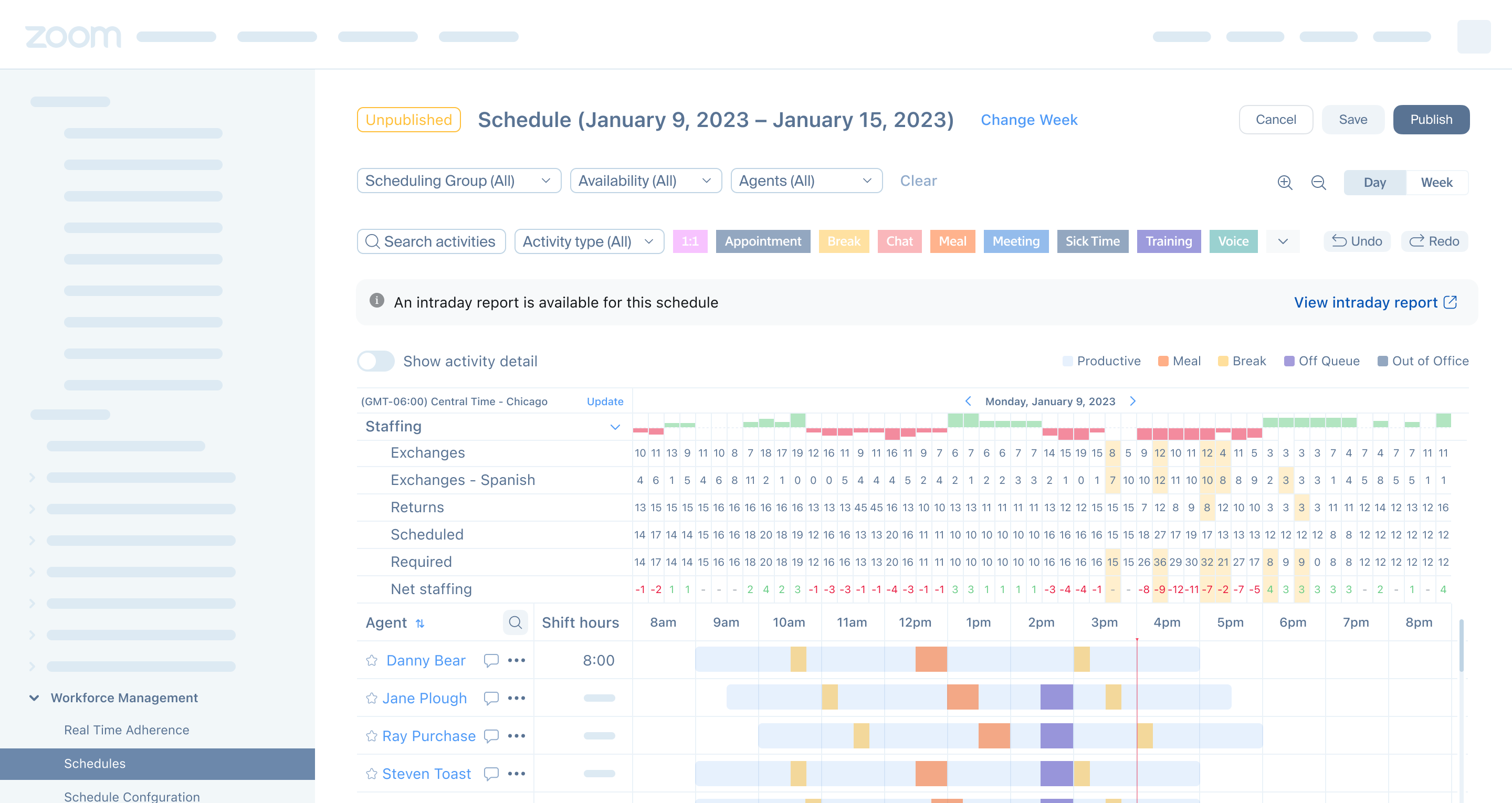 Applied levels stay highlighted until they change again, so a recalculation across dozens of values remains legible after the fact.
Then the part that touches people directly. New staffing levels mean the breaks and lunches planned against the old ones are in the wrong places. Re-optimizing that is the system rearranging agents' afternoons, so it does it on a leash. The supervisor sets how far any activity may move and the window it may move within, separately for breaks and for meals. They choose which scheduling groups it may touch, defaulted to the ones that were just reforecasted. Breaks can be optimized without meals, or the reverse.
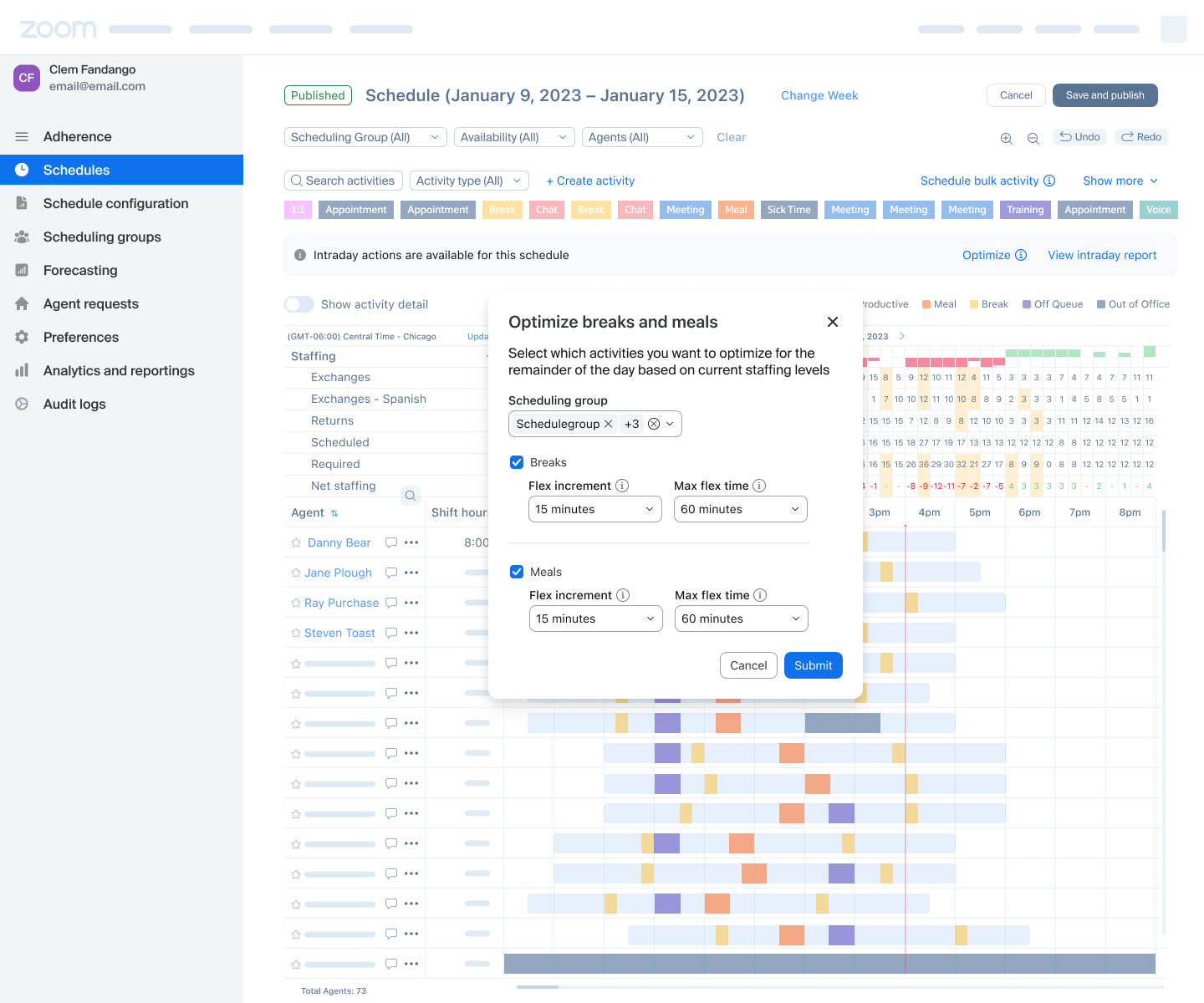 The leash: how far breaks and meals may move, the window they may move within, and whose schedules are in scope, defaulted to the groups just reforecasted.
And it doesn't apply anything until the supervisor has seen it. The preview draws the result on the schedule itself: new positions filled in solid, previous positions left as outlines in the same color, so both are visible at once. Agents whose breaks didn't move are still shown: the view is the whole picture, not a filtered list of changes. The preview also states what happens on apply, including that agents will be notified.
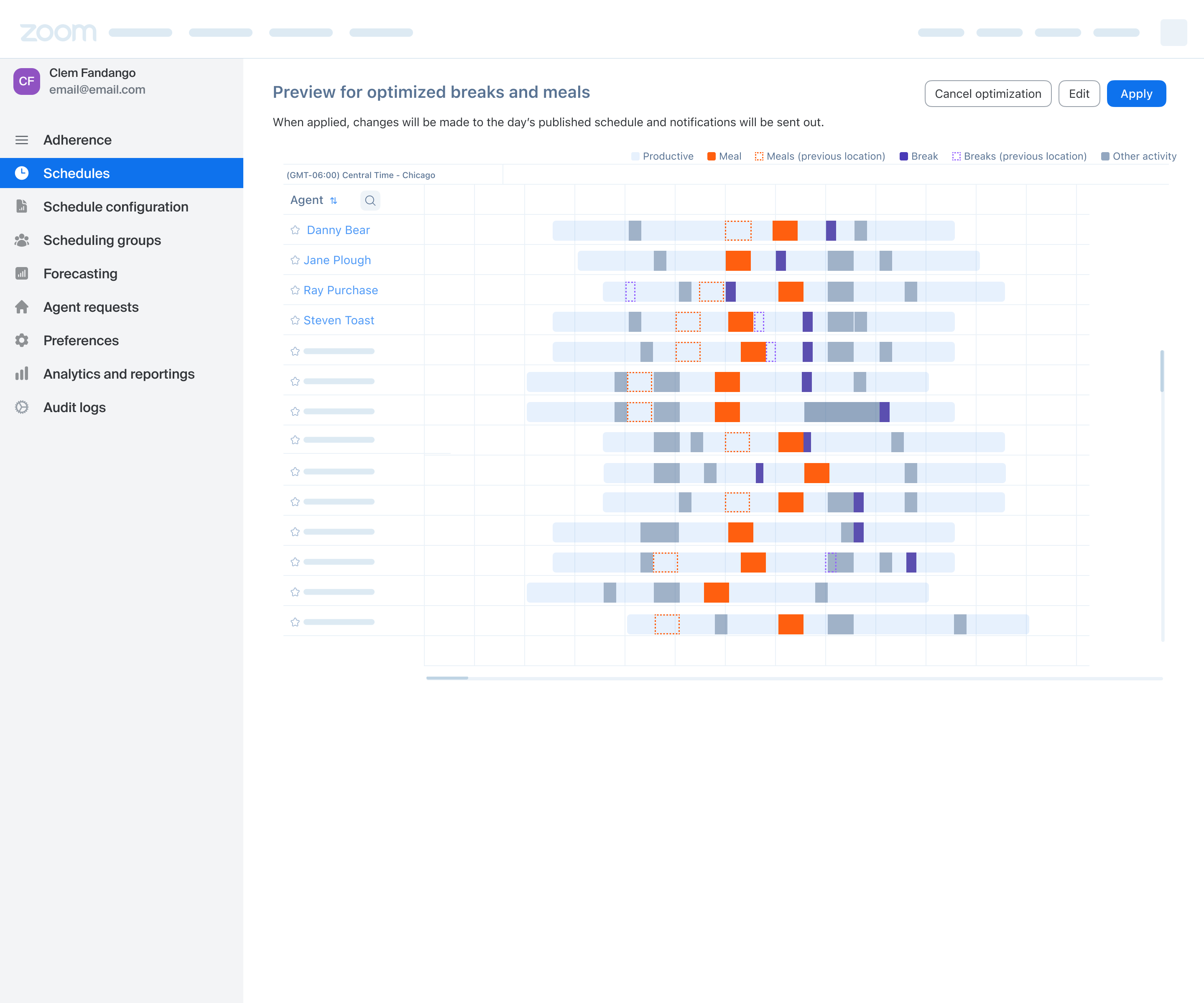 The preview draws new positions solid and previous positions as outlines, on the real schedule. Agents whose breaks didn't move are still shown.
Which they are, on their own schedule and by email. That notification is conditional: if a particular agent's day didn't actually change, they don't get told it did.
What the agent sees: a banner on their own schedule, and an email. Neither appears if that agent's day didn't change.
Sometimes the optimizer runs and concludes nothing should move. It says so, in the toast and in the email, in as many words. A recommendation of no change is a result, and the supervisor is told it explicitly rather than being left to infer it from a schedule that looks the same as before.
Beyond scheduling
Additional features across the product
Scheduling was where the standard got tested hardest, but the same thinking ran through the rest of the product.
The HR bridge. Two features linked WFM to the HR systems a company already ran on: one pulling time-off balances in from ADP, the other pushing paid hours out to payroll. They shared infrastructure: one place linking a WFM agent to their HR identity, sibling mapping tables under one settings home, and the same activity form behaving differently depending on whether the activity was time off or productive time.
Most of my time went to what happens when a mapping breaks. Delete the activity and the mapping goes with it. Delete the HR code on the other side and the row stays, with its code field cleared and waiting for a new selection, because the activity still exists and still needs mapping. Either way the system says what it did. Clearing a mapping deliberately gets its own reassurance: the existing balance isn't deleted with it. These are people's vacation days and paychecks, so the system says when it touches them.
Two ways a mapping breaks. Delete the activity and the row goes with it. Delete the HR code and the row stays, its code field cleared and waiting for a new selection.
Forecasting profiles. Admins were rebuilding the same forecast repeatedly because one forecast could only carry one set of targets. Profiles let them save targets per group and reuse them. Selecting a profile also restructures the wizard: the step that used to be "add scheduling groups" becomes "validate scheduling groups," a per-group check resolving to success, warning, or failure. A forecast built on thin historical data fails the check rather than producing a confident number nobody should trust.
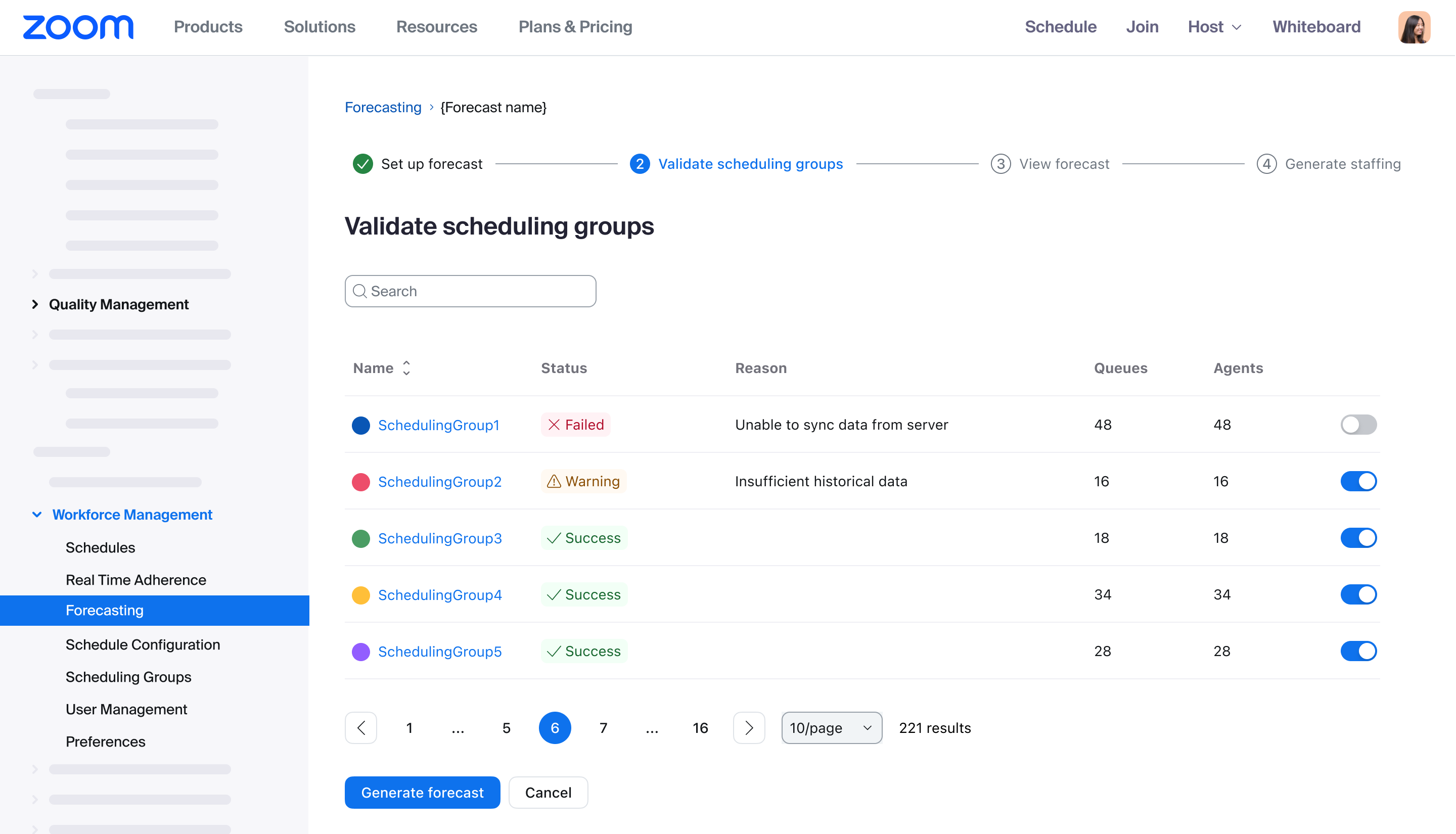 Selecting a profile turns the scheduling-group step into a validation gate. Groups that can't produce a reliable forecast fail the check before one runs.
Long-range capacity planning projects staffing need a year or more out, with growth and decay scenarios. The output is a hiring or reduction decision rather than a schedule, so the design is built around comparing scenarios instead of presenting one number.
Smaller features, same thinking. A frequently-used activities list that reorders itself by usage, with an explanation for why something dropped off and a manual override. A supervisor view showing whether an agent has synced their schedule to their own calendar (published isn't the same as received). Time-off approvals that propagate to every surface at once. A scheduling report that exports as a locked file with a timestamp, because a report that gets forwarded shouldn't be editable and should say when it was true.
Outcome
What carried across the work
Everything here shipped or was in build when I left at ten months. There are no post-launch metrics in this case study; I wasn't there to collect them.
Validation was direct: designs went in front of customers (sometimes with me, sometimes with the PM) and came back with feedback that shaped them.
What I'd carry forward isn't any of these features. It's the standard: a system that acts on people at scale owes them, and the person responsible for them, an account of what it did.